Showing posts with label english language learner. Show all posts

Monday, February 15, 2016

#EdTech Helping with Differentiation

Years ago if a teacher had a student that needed extra help with reading, keeping organized, or might need to see the instructions in a different format it was a real struggle to open up all of these options.  Today though, technology is here here to help and alleviate a lot of this extra work, and bring the tools to students to help them achieve success.  

Google Forms and Google Slides - Go to page option
Google has always been about collaboration and creativity, so it is no wonder that they have ways to support student learning.  By using either the “Go to question based on answer choice” in Google Forms or hyperlinking slides in Google Slides, teachers can create lessons that the student guides their learning.  Google Slides can be linked within the presentation to make a “Choose Your Own Adventure” learning setup.  When a student comes to a slide that he/she needs more support on a help link could be available to take a student to another slide that can assist them with the content.  This assistance could be a reading passage highlighted, a video, a graphic, or any other number of options.  This concept is also done in YouTube based on annotations.  Here is an example of how that would look.  


With a series of linked videos and annotations over the video, the students were able to cover a large topic, but in an engaging and differentiated way.  

With Google Forms, the same can be done but with the “Go to question based on answer choice” option on any question that is Multiple Choice, Choose from a List, or Checkboxes.  This is again a way to support student learning with graphics, video, and annotated reading selection.  Here is a video I made to explain how to do this.


Student Choice - Allow students to show understanding in multiple ways
Just like giving small children the option between multiple vegetables to eat, giving students a choice will make more success in them wanting to show their learning.  

Wheel Decide is new tool I just stumbled upon.  This site allows you to create your own spin wheel for students to choose tools, topics, or questions.  It can be set up to eliminate choices once it is landed on, which would be useful when assigning topics.  It is also embeddable, to be able to put to you class site as a staple to encourage a starting off point when trying to start a writing assignment.  Here is an example of that.


Have students show learning by completing a Bingo card or Learning Menu.  Kasey Bell of shakeuplearning.com brought me to this option of differentiation.  Here is here post about Bingo Cards.  Basically, create a series of tasks that a student must complete to show understanding of the topic.  On the Bingo board the student must complete a BINGO to finalize the assignment.  When using a learning menu the student will choose from a series of tasks.  Each task is worth a certain amount of points.  The students can then complete the task, and gain the grade based on the task completed.  Here is an example of this.  


Separate Groups in your Learning Management System - distribute work based on student grouping
Most Learning Management System (eBackpack, Google Classroom, Schoology, etc.) gives teachers a way to set up different groups within an already setup group.  The assignments or notes can then be distributed to multiple different groups, but not singling out a specific group. Create these group based on previous limits like ESL, Dyslexia, etc. or by a previous or pre-assessment done in class.  This could be a way to do small group instructions all at one time.


Record and Share Classes - students access this content later for learning at own pace
Recording you lessons are good way to get your students additional support.  If a student learns at a different pace, or is absent that day in class can access these recordings later.  These students can then pause, rewind, and slow down the instruction for deeper learning.  A couple tools to try out with this are:

Google Hangouts on Air - Create a Google Hangout and link on your learning management system.  Then start the hangout during the lesson time.  This hangout will then be recorded and saved on YouTube.  Add this and any of the handouts to your website.

Doceri on iPad - Using the free app and Doceri desktop to record annotation and desktop.  This can then be uploaded and movie to a sharing site.  I would do this for every class, then upload to YouTube at the end of the period.  By the end of the day, the video, assignments and handouts were posted to the Google Classroom.

Swivl - Handy little robot will follow you around and record your class.  This can then be housed on the Swivl servers, or can be downloaded.  Don’t have money for the robot, many times they will be happy to let you try it out for free first!


Lexile Level of Reading - change the reading level of what you student is reading
Making the reading attainable by all students, allows for all students to access the learning.  A few examples of where to help you with this.

Lexile Analyzer - use this site to determine what the reading level is that you are assigning.  Knowing the lexile level helps know if the material is accessible.

Newsela - The site curates news articles, aligns them to learning standards, and even can set-up quizzes and assignments.  My English teachers shared this great resources with me, and it just amazing.  It will also take a reading level and adjusted as needed by the student’s reading level.

TLDR - Too Long Didn’t Read is a Chrome extension.  It doesn’t lower the reading level, but it does summarize and shorten the reading.  If you want your students to gain the content, and they refuse to read long passage this just might help.  

Learning Ally - Students with visual and reading difficulties will enjoy this app and website.  Text is available in audio format, and easily accessible.  As an added bonus, and Texas student with these disabilities can access Learning Ally for free.

Rewordify - Lower a reading level of any text or webpage with this web tool.  After pasting in the text or website, Rewordify will rewrite the article.  Article will then be highlighted and accessible with extra support built in.  Words are clickable for definitions, synonyms and audio components.  Also vocabulary list, quizzes, and other assessment tools can be accessed based on these sites.  Here is a short screencast about this site.


Differentiation is make content accessible to all students.  By using technology and address your student’s needs, all students can learn.  I hope some of these are useful to you.  Are there any that I did not mention that you favor?  Put them in the comments below.

Monday, December 7, 2015

Reviewing for the Year's End

A question was posed in the Instructional Technology Specialist Google Plus group about review for year end exams.  There were a lot of great suggestions, so I thought I would compile them here, and maybe add some more of my own.  The goal for most of these is to make the review process engaging and enticing to students.


Kahoot (+Kristina Wambold)- Quick multiple choice review game.  Set up or find topics from the public listings, and run a game on the classroom projector.  To spice it up, play with your kids and give them some grand prize for beating your score.  I would post the winning scores on my Twitter accounts with the kids Twitter/Instagram handle attached.


Quizizz (+Patrick Reid) - Like Kahoot, but the questions appear on the student devices and questions are self-progressing.  Also the memes that appear after each question also are pretty motivating.


Quizalize (+Charlie Gerancher) - This is a new one that I have discovered, but seems to become one of my favorites.  Mainly because of the dashboard that is provided for the teachers as their students progress through the questions.  Also, this one provides for team grouping.  You can see how a team and individual students are doing and what needs to be reviewed again.  


QR Code Scavenger Hunt (+Patrick Reid) - Make a series of multiple choice questions with the answers being QR codes.  Each QR code will either tell them it was a wrong answer, or where to go for the next question.  This one gets your kids up and moving, and is team building.  The link provided makes this job way easier than I have done it before.  


Flippity Quiz (+Mary Comer) - Create a series of questions and answers in a Google Sheet, then this script will create the results into a customizable Jeopardy style game board.  I used this a lot for vocabulary terms that I had already created in a Quizlet.  Works well for team play from 2 - 6 teams.


Some other ideas I had as I thought back of ways I have reviewed with my students.


Review Squares - This one goes back from an English Language Learners strategy.  You print or share a series of boxes with the topics of an upcoming test.  Then you give each student one minute to write what they can remember about any topic.  While that student is writing the rest are reviewing their notes.  The apparent goal is for the student to get more information/items on their paper, then the next team.  The hidden goal is for the students to review their notes and notice details.  


Slap It - Write or project key terms, topics or ideas from the subject matter.  Give to students fly swatters.  Have each student face away from the list of terms.  Read off the question,  the students turn to find the answer.  While they are doing this their teammates can help by saying the answers, but they must stay in their seats.  It gets heated quickly.


Congo Line Review - Have students create a question(s) and answer(s) to what they think might be on the test.  Have students stand in two line facing each other.  They then take turns asking and answering questions.  Once this is done, one student at the end shimmies (yes they must dance with the provided music) to the end of their line down the center, and the rest of their line shifts down.  The other line stands still and greets their new partner, and the question and answering continues.  

When reviewing making it student centered, and questions being student created will give you greater success.  Many of these will give you an idea of how students are prepared for the upcoming exams.  Be sure to stop and take the time to go over and adjust your teaching when you see spots that need additional assistance.  Any other ideas you would suggest?  Any favorites that your students repeatedly request?

Thursday, October 15, 2015

English Language Learners Tech Tools

I was once in a PD for sheltered instruction, and a discussion started about technology in the classroom.  Many of those in attendance did not see a need for technology in the classroom.  This is what inspired me to write my first post.  I figured start off with tools that could be used for the ESL student.  Here is a quick list of tools that I have found useful in my classroom.

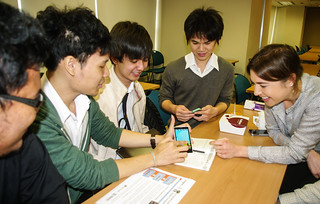
USAID and partners mentor student finalists for the Microsoft Imagine Cup
Photo Credit: USAID Asia on Flikr

Google Translate - I find this best place to start. If your school is BYOD, 1:1, none of the above.  If a student doesn't understand what you are asking of them, why not give them a tool to succeed.

Voki - According to what I have learned, an English language learner is able to write and read, before they will want to or even can speak English.  Why not give them a tool to give a voice to what they are writing?

Educreations  / Explain Everything / ShowMe - All of these are not the same, but I group them together.  This tools give the student the ability to practice reading, writing, and speaking.  A assignment could be done as a reflective piece explaining what was learned in class.  If a student doesn't know a word that they are trying to explain about, they could always say the word in their native language and just input a picture of the word.  I like Educreations because not only is it free but it can also be web-based instead of an app.

Socrative/Polleverywhere - I know these are different ideas behind them, but they can both serve the same purpose.  I like to put up a free response question up, and allow students to answer at their will.  I have found that many of my ESL students are hesitant to talk, but giving them an anonymous voice breaks down that affective factor.  A recent update will even let you embed Polleverywhere polls in to Google Slides Other options that could be used are places like Today's Meet or Chatzy(from Wes Fryer).  Both of those are back channels, and I haven't in a specific classroom setting only during PD times.

Aurasma - This app I haven't specifically used in my classes, but I am excited to try this year.  I first learned of this app from the great Erin Klein from a blog post concerning Augmented Reality (AR).  AR is a new type of technology that delivers a more interactive experience from normally not interactive materials.  The idea I want to try is from Erin's blog post that suggest using the word wall cards, and making them interactive.  The students, using the app, could make videos, images, or animations that explain each of the words in a more fun and engaging manner.  Say for instance the word was photosynthesis, a student could add an "aura" to the word that was a quick video.  Or the word was DNA, the "aura" could be an interactive image of DNA could be turned, manipulated, and possible taken apart.  Another thought I had, was for my ESL students to create "auras" in their native language.  This could benefit both the ESL student, but also the native English speaker helping them learn a new language.   That could inspire a conversation on cognates.  Like I said I have not had a chance to use this in my class, but am excited of the possibilities.
*As a side note I heard about Erin's blog and Aurasma on the Techlandia Podcast, so thanks guys and gals.


So there it is.  A quick list of some of the offerings of technology tools for the ESL learner.  There are probably another 5 days worth of reading on ESL tech tools.  There is a lot out there, I want to learn more.  So that being said, technology is  not something we should be trying to get out of our schools.  It is something that we should embrace.  Our students have embraced, even more so engulfed themselves within it.  Why are we trying to take this from them.  The average student is walking around with an amazing resources gathering, brainstorming, content creator, data processing tool and we tell them to never take it out.  This does not sound like good education.  I support my students when they want to use their phones or tablets.  I try to teach and instill proper use skills as well.  How will they ever know when and when not is a good time to use their phones if we never teach or let them experience?  Our students want to learn, are we destroying that desire?

*Note: I had previously posted this in another blog.  I thought it was worth repeating here.